Reseller Portal Guide
Summary
1: Connection to the License Portal
2: Manage your credit balance
3: Createan Activation Key
4: Assigna License / Support
5: Check for your licenses / support
1: Connection to the License Portal
Launch your Internet browser and go to the Internet address https://license.tsplus.net/
Type your login (or the email associated with your account) and password to access the application. (The password input will show when you entered a valid login)
2: Manage your credit balance
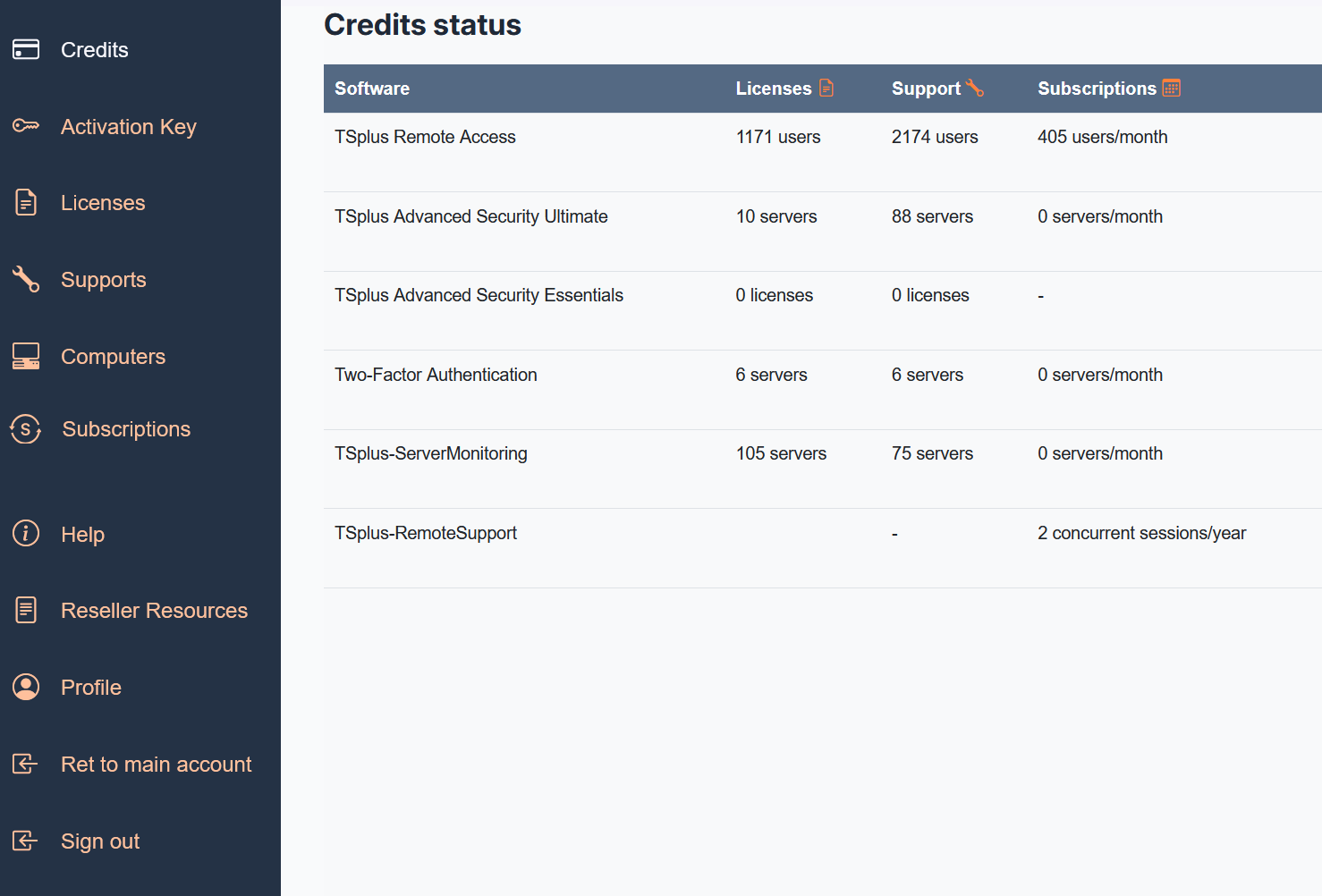
From this tab, you can check your available credit balance for creating licenses and update/support subscriptions.
To top up your credits, you can go through our sales teams or your partner, or proceed directly via your portal,
depending on the status of your reseller agreement.
3: Create an Activation Key
When you log in, you will first see this page. However, you have no licenses yet. To generate one, you will need an Activation Key.
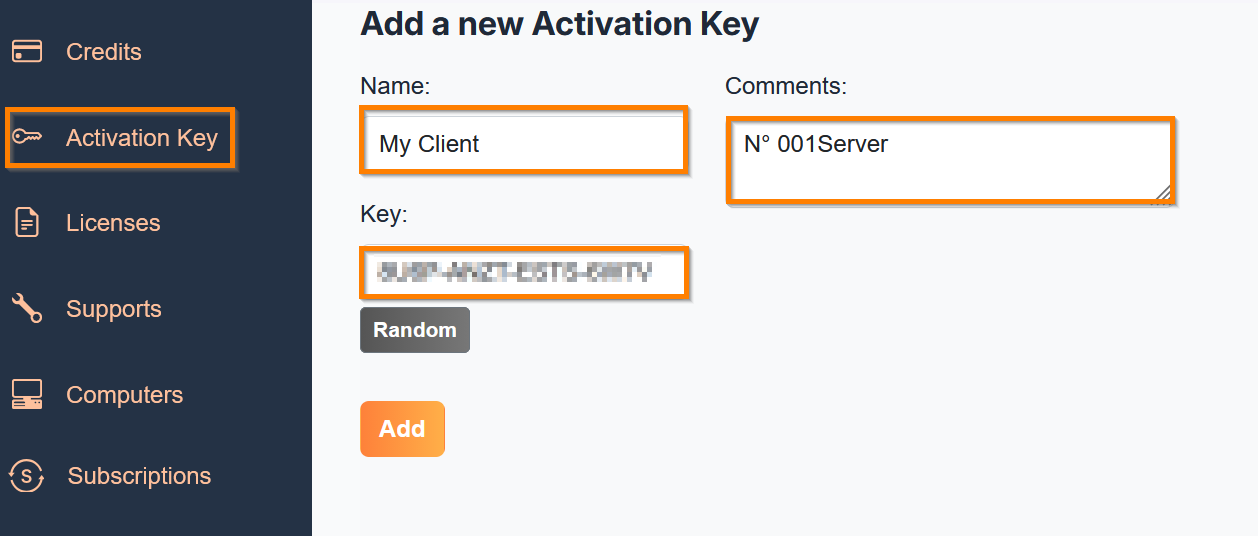
To do so, you can click on the orange button “Generate a License” or go to the Activation Key page using the left navigation bar.
On this page you can set:
- The name
- The comments
- The key
- You can choose a Random one automatically generated or set your own, but you must follow this format: XXXX-XXXX-XXXX-XXXX
- Then click “Add”.
4: Assign a License / Support
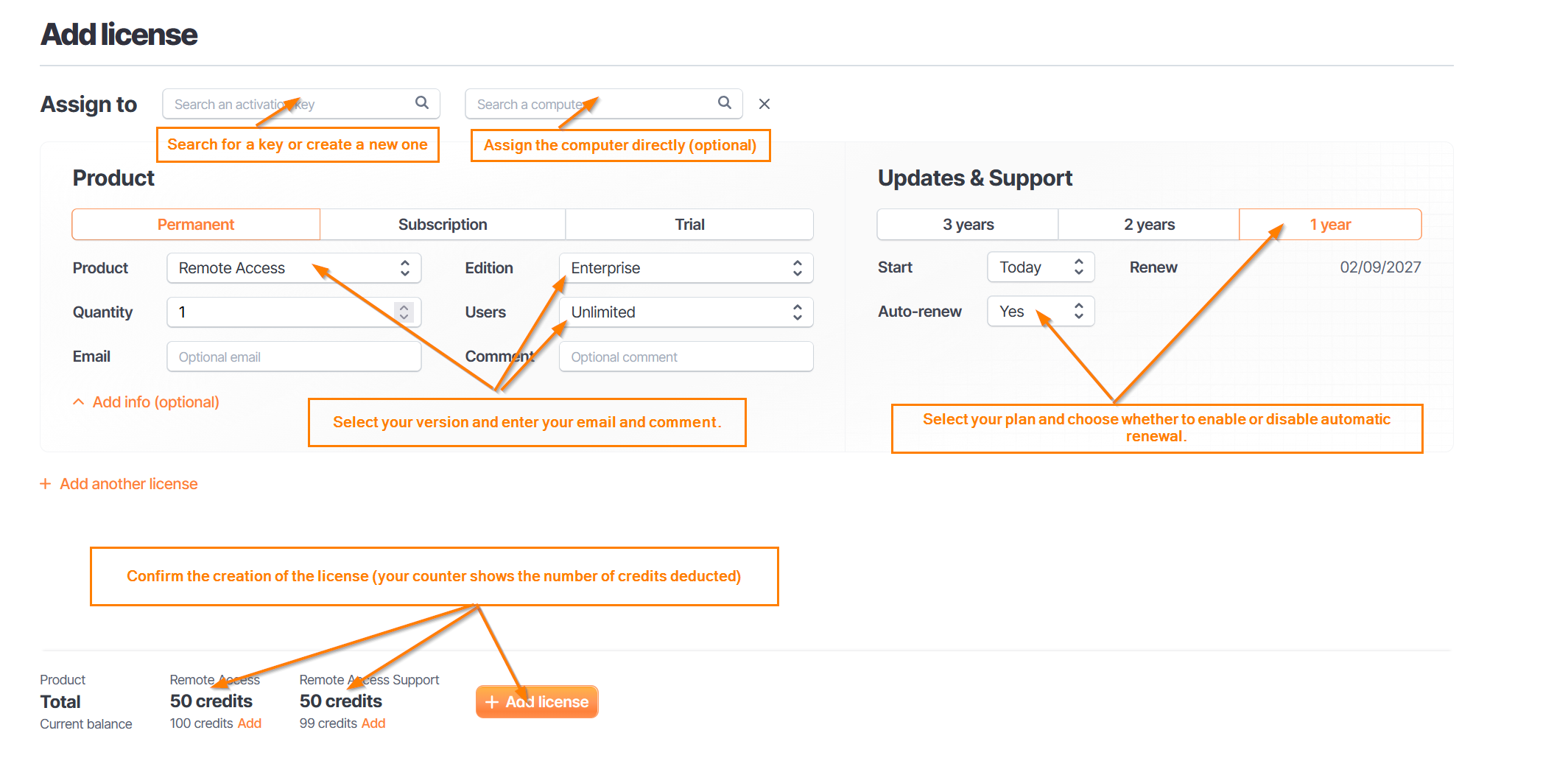
You have a fresh Activation Key. To assign licenses or supports:
- Click on the product you want
- Choose Permanent or Subscription
- If you choose trial, you must set the duration (This option is available only for certain contracts)
- Check if you have enough credits
- You will be warned if not
- Complete the required fields (subscription/support duration and automatic renewal activation)
5: Check your Licenses / Support
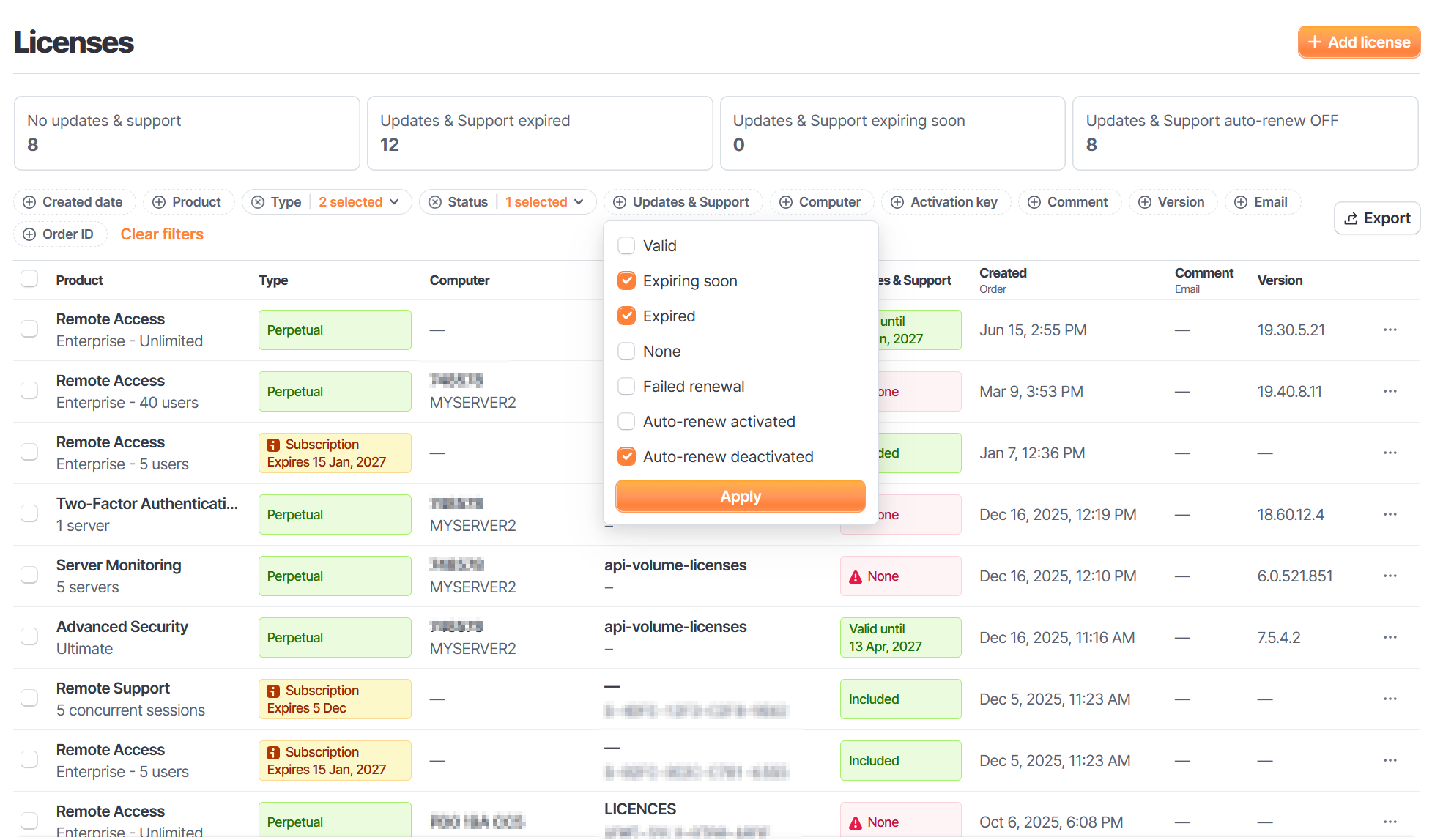
On this page you can see your licenses.
Additionally, you can:
- Upgrade (increase user count)
- Edit (email or comment)
- Delete your license (only if not yet activated on a device)
- Support Management
- Manage your support subscriptions
You can:
- Use filters to track expired support by changing the End of Support date to a past range
- Upgrade (edition, users)
- Extend existing support (even expired) by clicking the extension button